URL Frame works similar to URL redirect except that instead of redirecting the visitor to your web page, the web page will be fetched from the other server and displayed in a frame. The difference is that after redirection, the browser's address bar will continue to display your domain name.
Unfortunately, there is no tool in cPanel which would automatically set up URL frame. However, you are still able to do that using certain HTML tags in your site index file.
<iframe> tag
The <iframe> tag specifies an inline frame. An inline frame is used to embed another document within the current HTML document.
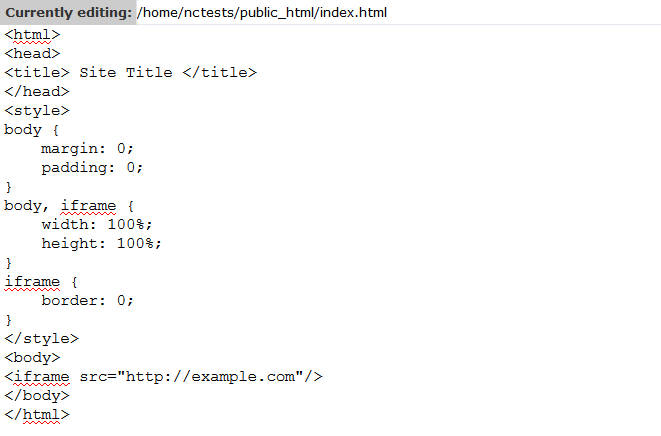
To set up URL frame using this tag, insert the following code into your main index file and save the changes (make sure example.com is replaced with the destination domain and Site Title with the actual site name you wish to be displayed in the browser tab):
<html>
<head>
<title> Site Title </title>
</head>
<style>
body {
margin: 0;
padding: 0;
}
body, iframe {
width: 100%;
height: 100%;
}
iframe {
border: 0;
}
</style>
<body>
<iframe src="http://example.com"/>
</body>
</html>
<frameset> tag
The <frameset> element holds one or more <frame> elements, each <frame> element can hold a separate document, so there will be multiple pages fetched into your index page.
To set up URL frame using the <frameset> tag, insert the following code into your main index file and save the changes (make sure example.com is replaced with the destination domain and Site Title with the actual site name you wish to be displayed in the browser tab):
<html>
<head>
<title> Site Title </title>
</head>
<frameset>
<frame src="http://example.com">
</frameset>
<noframes>Your browser does not support frames. Please click <a href="example.com"> here </a> to be redirected automatically </noframes>
<!-- This tag is required for old browsers. If browser does not support frames, end user will see a message indicated between <noframes>...</noframes> -->
</html>
NOTE: <noframes> and <frameset> tags are not supported in HTML5. Starting from it,only <iframe> tag is used.
To edit the index file for the domain, do the following:
1. Log into cPanel.
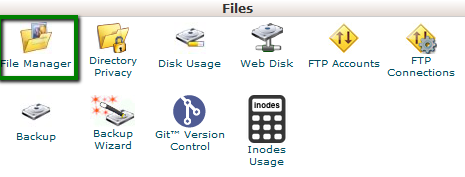
2. Navigate to the section Files > File Manager: 
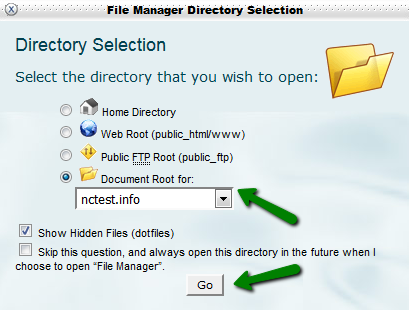
3. Select the Document Root for: option and choose the domain you need to set up URL frame for. Click on Go: 
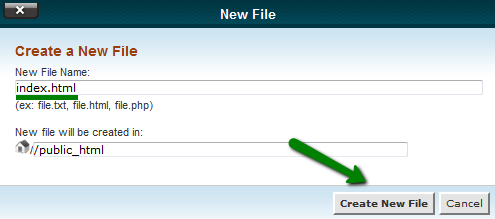
4. Once you are in the root directory of your domain, create an index.html file.
Click on New File in the upper bar Create New File: 
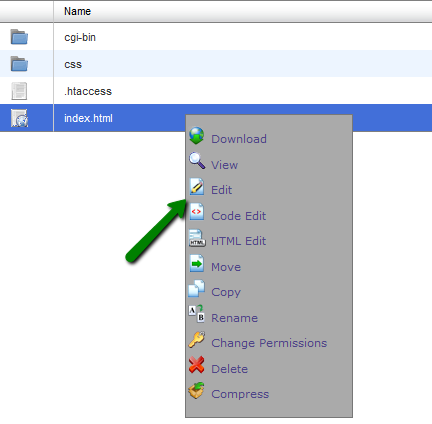
5. Right-click on the file and select Edit: 
6. Insert the code for setting up URL Frame and Save Changes: 
That's it!
Taking backup of database Login to your control panel and click Backups. Under... Read More
When a user hits your website a call is made to your server to deliver the requested files. The... Read More
Overview The File Manager interface allows cPanel users to manage and edit their files. The... Read More
1. Login into your cPanel.2. Move down until you find "Softaculous Apps Installer" Section, then... Read More
For cPanel 1. Login into cPanel. 2. Click on File Manager. 3. Go to root directory of... Read More