The instructions provided in this section were verified against Windows Live Mail Version 2012. They might not work with earlier or later versions of Windows Live Mail.
To set up Windows Live Mail:
- Open Windows Live Mail.
- Click Accounts > Email.
- Type in your email address and password and select the Manually configure server settings checkbox.
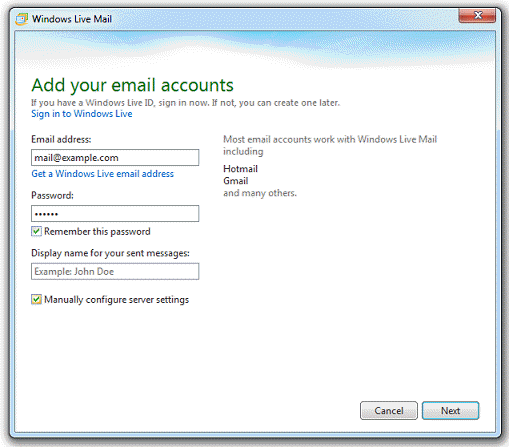
- Click Next.
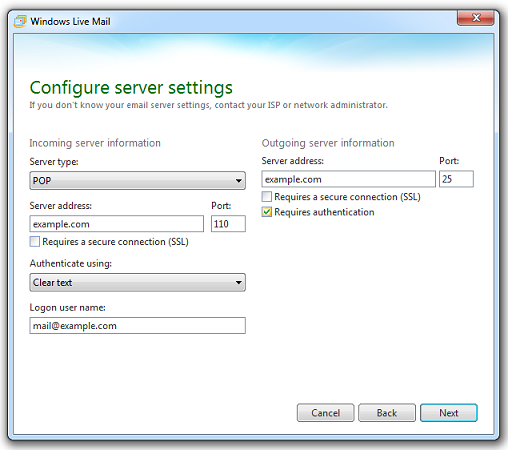
- In the Incoming server information section specify the following:
- Server type. Select IMAP if you want to keep copies of received email messages on the server. Select POP if you do not.
- Server address. Type in your domain name, for example, example.com.
- Requires a secure connection (SSL). Select this checkbox if advised by your provider. Otherwise leave it clear.
- Port. Leave the default values unless your provider advises you to use custom ones.
- Authenticate using. Select Clear text if you are using Plesk for Windows and chose POP from the Server type menu. Otherwise select Secure Password Authentication.
- Logon user name. Type in the name of your email account, for example, mail@example.com.
- In the Outgoing server information section specify the following:
- Server address. Type in your domain name, for example, example.com.
- Port. Leave the default value unless your provider advises you to use custom one.
- Requires a secure connection (SSL). Select this checkbox if advised by your provider. Otherwise leave it clear.
- Requires authentication. Select this checkbox.
- Click Next.
Was this answer helpful?
Also Read
-
Access from Mozilla Thunderbird Open or Close
The instructions provided in this section were verified against Mozilla Thunderbird 31.4.0. They... Read More
-
Access from Microsoft Office Outlook 2010 Open or Close
To set up Microsoft Office Outlook 2010: Open Microsoft Office Outlook 2010. Go to File >... Read More
-
Create Mail Account in Plesk Open or Close
In order to create an email account in Plesk, follow the steps given below: 1. Login to Plesk.... Read More
-
How to configure mail in Mac OS Open or Close
The instructions provided in this section were verified against Apple Mail 8.2. They might not... Read More
-
How to Configure Mail in Android Gmail App Open or Close
The instructions provided in this section were verified against Android 4.4.2. To set up a mail... Read More