Using the Raw Access Logs menu in cPanel, you can check the traffic coming to your website before it is turned into a report by the statistics software. It is a great functionality to take a closer look at the type of the requests your websites are getting.
You can access it by logging into your cPanel and navigating to the section Logs: 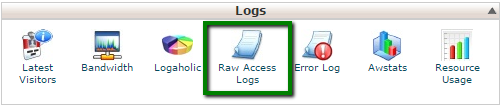
In the Configure Logs section, you can set up cPanel to automatically archive and remove the logs.
Make the necessary changes and click on Save to apply them: 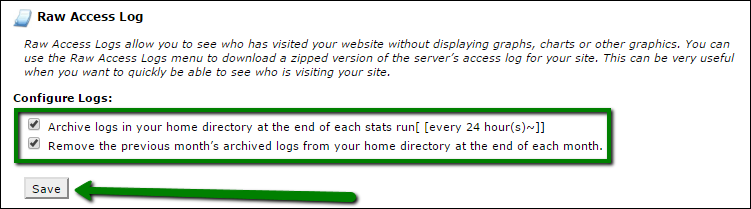
The Download Current Raw Access Logs option allows downloading the corresponding log for certain domain(-s):
- Domain - list of the domains in your account.
- Last Update - the latest date when the log was updated.
- Disk Usage - the amount of the disk space the log file takes.
- Linked Domains - list of the addon/parked domains.
To download the zipped log file, simply click on the domain in question: 
Once downloaded, extract the file locally and view it using any text editor. You will see the following output: 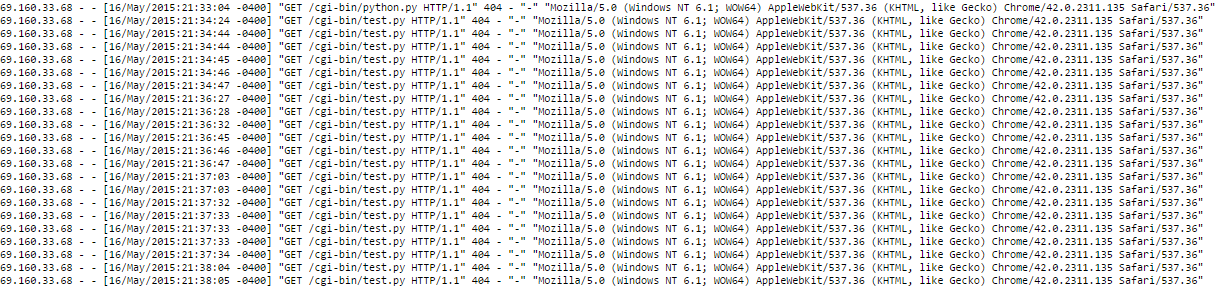
Each line begins with the identity of the agent that visited your website (generally, an IP address is recorded).
Next, the date and time are logged.
Then you may see the type of HTTP request sent by the agent (usually GET or POST).
The next field is a relative path to a file/image/query and HTTP version (1.1 in the example).
A three-digit code displayed specifies the resulting status of the request: 404 - not found, 200 - success.
The next portion of logs identifies the referrer, if any - a hyphen in our example.
Although, null-referrer values are common for robots, the actual URI data is generally typical for human users.
Finally, the formal identity and credentials of the user-agent are specified.
If you wish to download archived logs which are stored in the account home directory, click on the corresponding one in the Archived Raw Logs section: 
If you would like to see the advanced graphical reports for the hosted domains, use the Awstats menu.
That's it!
Was this answer helpful?
Also Read
-
FTP Accounts Open or Close
Overview You can use this interface to create and manage your website's File Transfer Protocol... Read More
-
Configure Map on SitePad Builder Open or Close
1. Login into your cPanel, and then website Builder. 2. Click on Pages section and select the... Read More
-
How to increase disk quota of Email in cPanel Open or Close
1. Login to cPanel. 2. Click on Email Accounts. 3. Click Email Accounts Tab.... Read More
-
Cron Jobs Open or Close
Overview Cron jobs are scheduled tasks that the system runs at predefined times or intervals.... Read More
-
Simple DNS Zone Editor Open or Close
Overview DNS (Domain Name System) is the component of the Internet that converts human-readable... Read More